Work on their desktop
Mouse and keyboard control, file transfer, chat, and on-screen annotations. Connect by PCID, saved computer, or Quick Link.
Set up your first connection Screensie
Remote support for Windows and Linux.
Connect to a desktop, investigate a problem, and keep your computers in view. One connected toolkit.
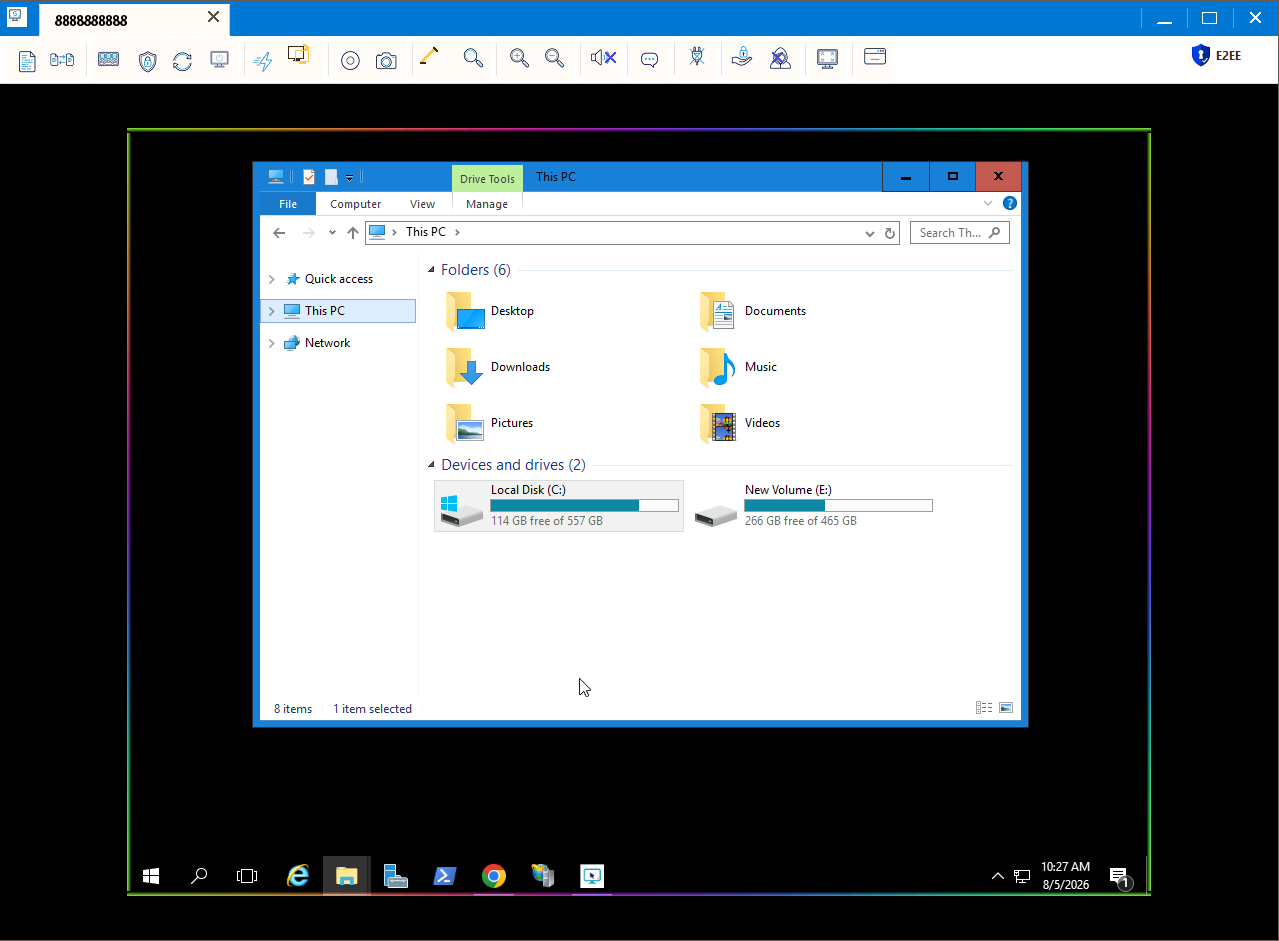
Remote Control, Command Center and Screensie Manager. The animated demonstration uses fictional computers and connection details.
Mouse and keyboard control, file transfer, chat, and on-screen annotations. Connect by PCID, saved computer, or Quick Link.
Set up your first connectionHealth findings, searchable processes, sortable services, and system evidence in a dedicated Command Center.
See Command CenterYour existing groups, resource readings, incidents, and timed screenshots in Screensie Manager. Included with every active subscription.
Explore ManagerAvailable tools depend on the computer's operating system, permissions, and installed version.
Follow the setup on each computer. Share a direct link to any step with the person you are helping.
Open the walkthrough on its own page
On your own computer, create a Screensie account. You will use it in the website, Screensie Client, and Manager. The Free plan lets you test your first connection.
On the computer receiving support, download the package for its operating system. Run the installer and approve the operating system's installation prompt.
On Ubuntu or Debian, download the .deb package, open it with Software Install and click Install. Enter your administrator password, then open Screensie from the application menu.
The screensielinuxsetup.run installer is also available for command-line deployment. In a terminal opened in its download folder, run:
chmod +x screensielinuxsetup.run
sudo ./screensielinuxsetup.run
Use the actual downloaded filename if your browser renamed it. Follow the installer's prompts. Linux uses its own installer, not the Windows Advanced options screen. On Wayland, approve sharing and input on the first connection. Follow the Wayland screenshot walkthrough and test access before leaving the PC unattended.
The separate Manager dashboard app is not needed on every remote PC. Monitoring is included with the regular Screensie installation.
On the computer receiving support, choose a rotating password for a support visit or a private password for repeat access.
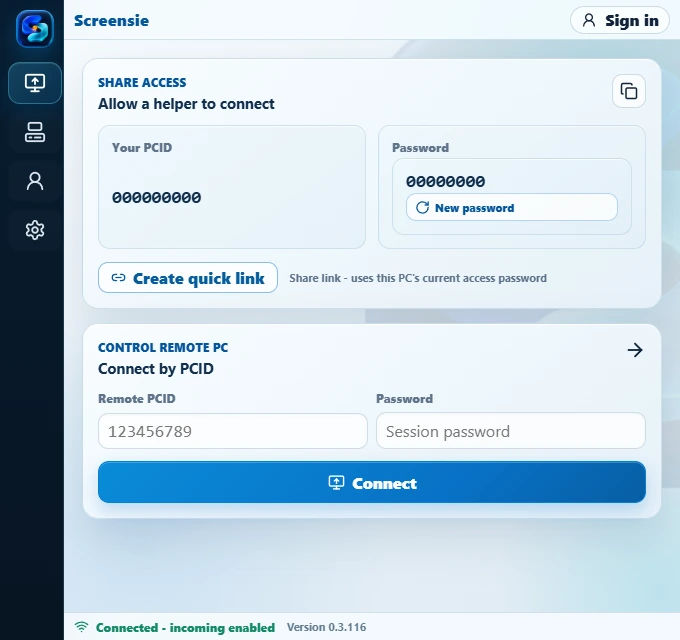
For an attended support visit: use Share access to find the PCID and rotating password. Give them only to the person you trust to help, or use Create quick link.
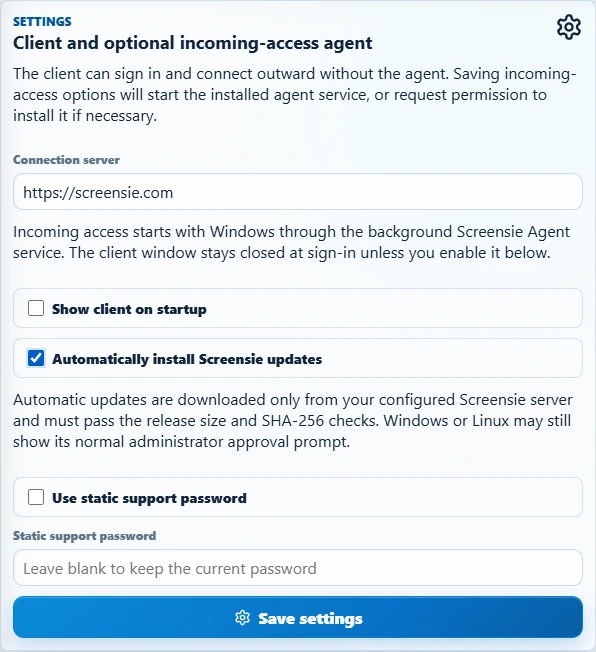
For repeat access: open the Client's Settings, select Use static support password, enter a strong Static support password, and select Save settings. You can also set it during Windows installation under Advanced options.
A private/static password is not the random password displayed for sharing. Do not put it in screenshots or public messages. Keep it in a password manager and use it only for authorized connections.
Confirm the PC is online and incoming access is enabled. It must remain powered on, connected, and have the required desktop permissions.
You do not have to sign every customer's PC into your own account just to connect by PCID and an authorized connection password.
Never install remote-access software or share access because an unexpected caller says your bank account or computer is in danger.
On your own computer, open Screensie Client to add the remote PC to your list.
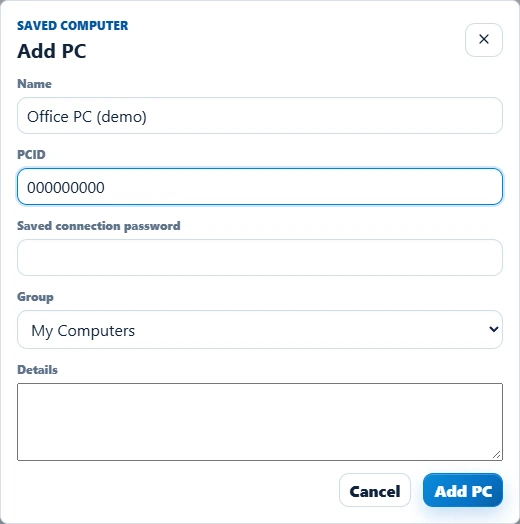
You can also skip saving: enter the remote PCID and password under Control remote PC for a direct connection.
A rotating password may change. Saving an old rotating password does not turn it into a permanent credential.
From Screensie Client on your own computer, choose Remote Control or Command Center for the saved PC.
Remote Control: open the saved PC to start a remote session, or use Connect with its PCID and password. Complete any access or operating-system permission prompts.
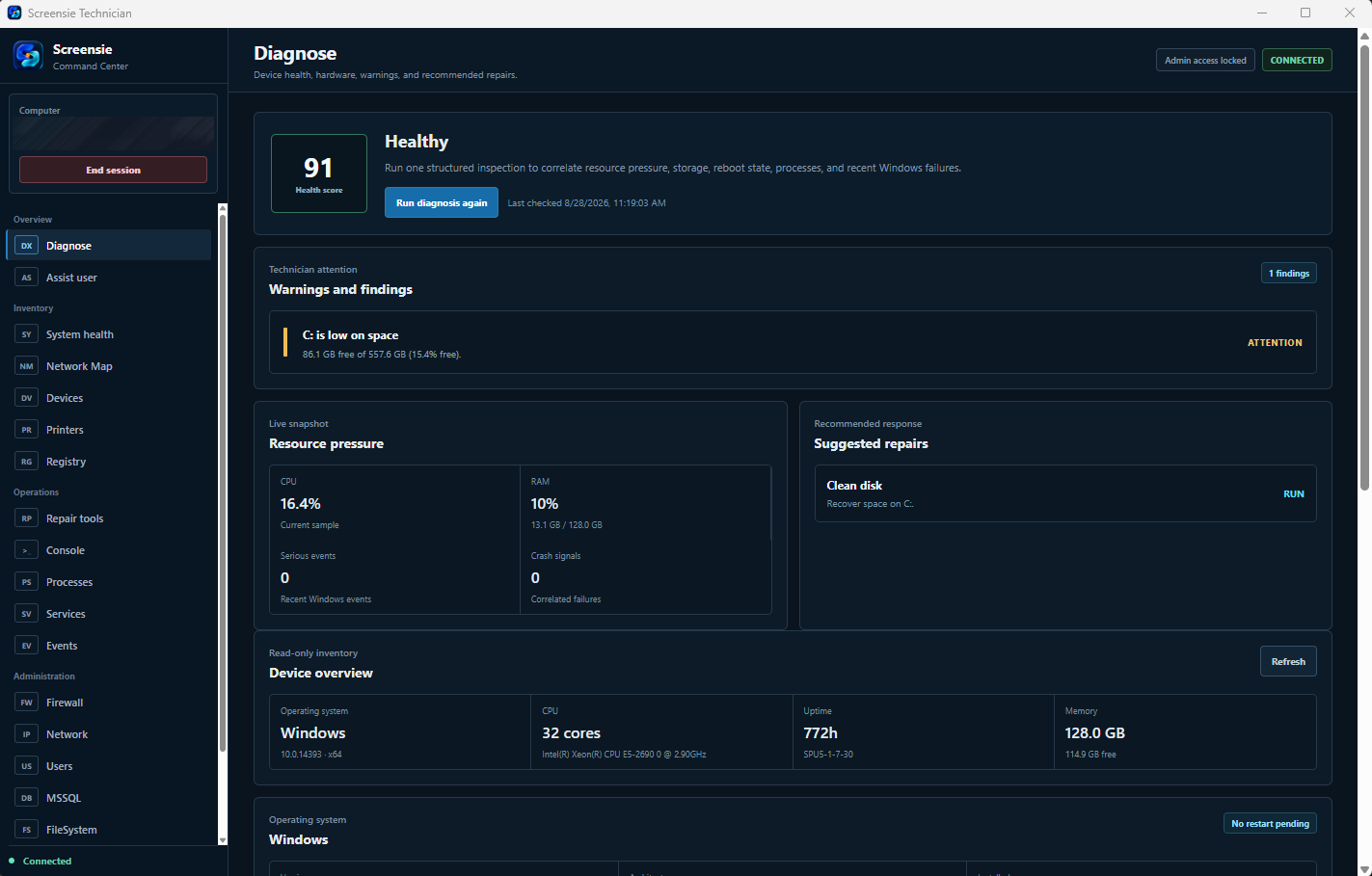
Command Center: open the saved computer's menu and choose Command Center. Start with Diagnose, then follow findings into tools such as Processes, Services, or the file browser. The remote installation must include Command Center and grant the requested access.
Check that the PC is online, the installed versions are current, and you entered that PC's connection password rather than your account password. On Wayland, approve sharing and input on the remote desktop first. See the Wayland setup walkthrough. A sleeping or locked-down PC is not the same as an available session.
For Command Center, check that its administration component was not excluded during installation. Contact support@screensie.com with the error and version numbers, never passwords.
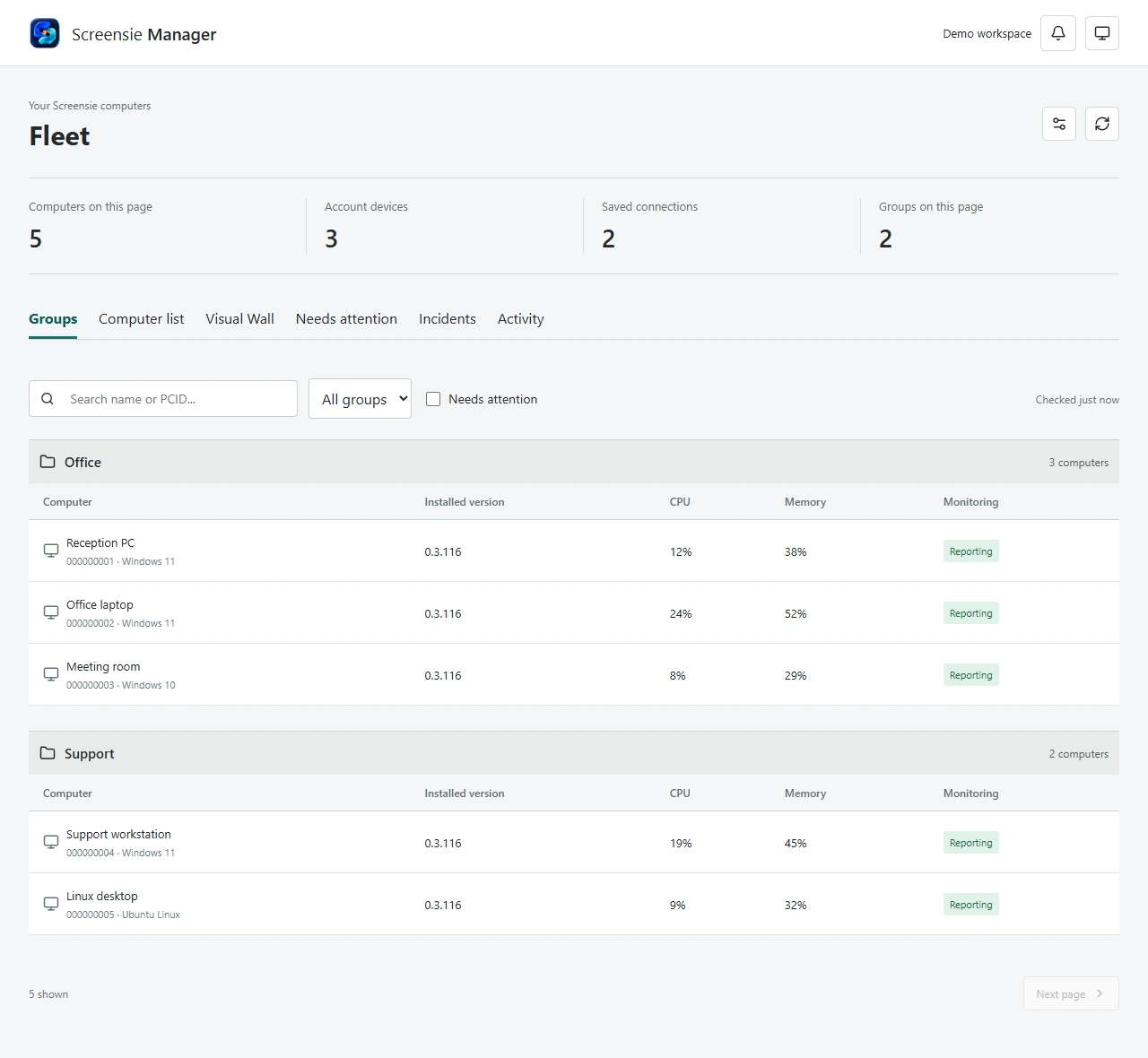
Use Manager on your management computer. Every active subscription includes access automatically.
A PC marked as awaiting a report has not yet supplied current monitoring data. Check its online state and installed version instead of assuming it is healthy.
Explore Manager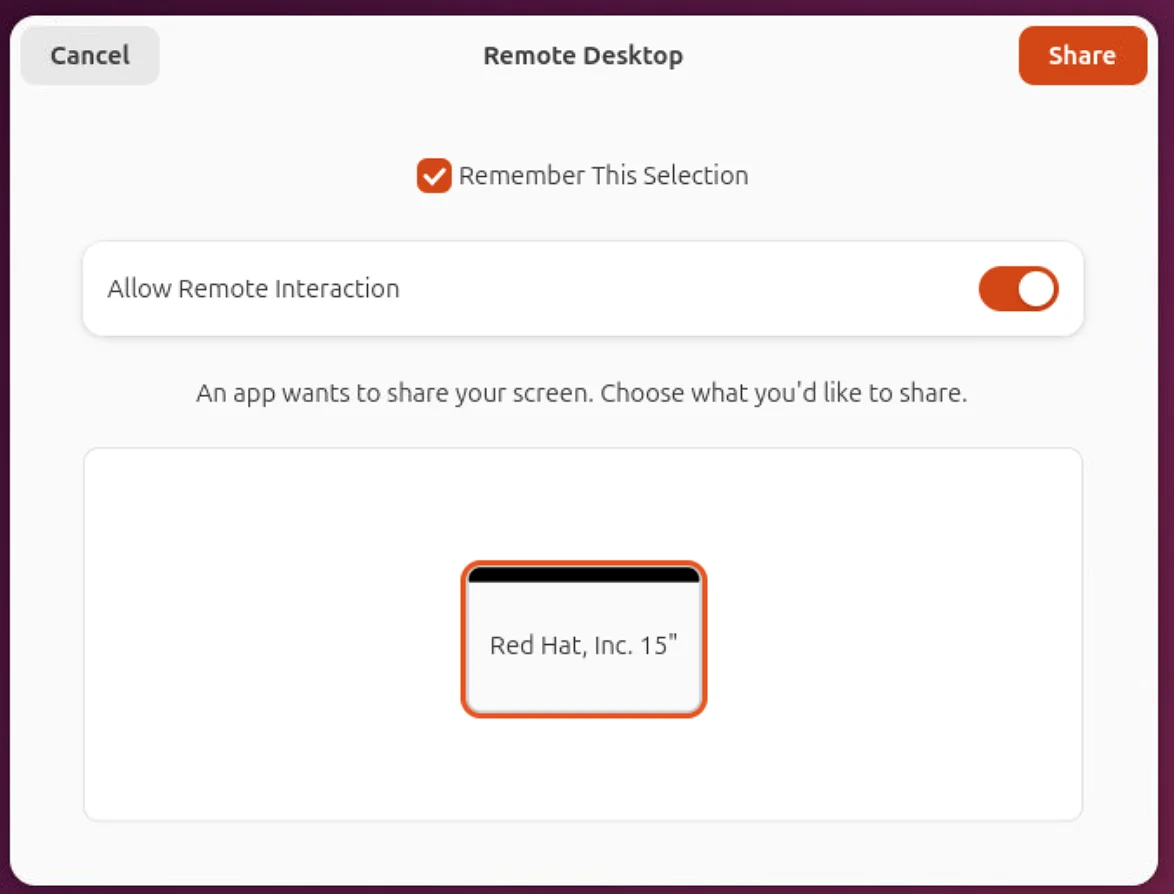
Approve screen sharing and input before leaving a Linux PC unattended. See the actual permission screen and test remembered access.
Open the walkthroughMonitor the computers and groups already in your account.
Switch between grouped lists and a thumbnail wall. Review the latest received readings, installed versions, and resource history before opening a support session.
Timed screenshots are available on supported PCs. They are periodic snapshots, not a live video wall, and follow the host's permissions.
Every active Screensie subscription includes Manager automatically. No separate activation. No per-endpoint charge.
Open Manager or download its separate Windows or Linux app from your signed-in dashboard. Monitoring comes with the standard Screensie installation; the Manager dashboard app is only for the computers you manage from.
Encrypted connections, explicit access permissions, and controls on the remote computer.
Current supported clients protect screen, input, file, chat, and technician traffic through authenticated encrypted channels.
Use rotating passwords, private unattended-access credentials, or a temporary Quick Link. Share access only with someone you trust.
Supported hosts show the active session and provide local stop controls. Operating-system permissions, including Wayland sharing approval, still apply.
Each subscription unit licenses two computers you connect from. No per-endpoint charge for the PCs you support.
Free
For the occasional helping hand.
Monthly
The full toolkit. Month to month.
Yearly Save $20 per unit
The same toolkit. Two months free.
Every unit covers two outbound PCs. Your customers' computers do not add to this number.
Prices in USD. A trial does not automatically become a paid subscription. If you do not choose a paid plan, your account continues on Free.
One subscription unit licenses two outbound PCs. Paid plans include unlimited destination PCs, within outbound-device and simultaneous-session limits.
For help with your setup:
Contact supportOne monthly or yearly subscription unit licenses two outbound PCs. Both can make connections, including at the same time. Additional units add two more licenses each. Existing subscribers receive the same allowance without changing their billed quantity. Assign your outbound PCs on the Subscription page after signing in.
No. Paid seats are for the computers you connect from, not each computer you support. Paid plans let you save unlimited destination PCs without individual endpoint charges.
Install Screensie on the PC receiving support. Use the Screensie client or an available browser viewer to connect. Install the separate Manager app only on management computers, or open Manager from your signed-in dashboard.
No. Every active Screensie subscription includes Manager automatically. It uses the PCs and groups already in your account, and its download is available after you sign in.
You can configure unattended access on supported hosts. The desktop must be available and the required operating-system permissions must be granted. Wayland screen sharing may require local approval; Screensie does not bypass that permission. Use the Wayland setup walkthrough to approve the first connection and test remembered access.
Windows 7–11 and Linux packages are available. Features and permissions vary by system, desktop environment, and installed agent version. Try your actual computers with the Free plan before choosing a subscription.
Yes. Manage your subscriptions and cancel future renewal directly from your signed-in account dashboard.
Windows and Linux. Free to start.

Continue with